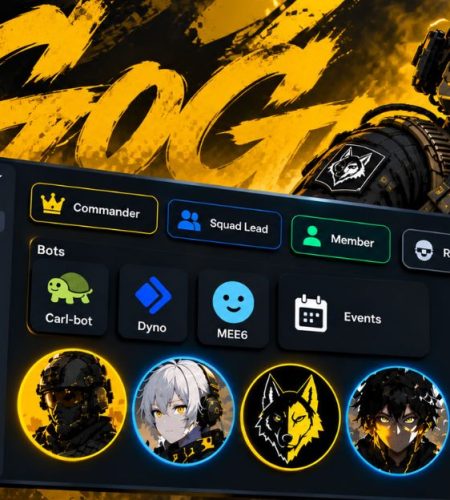
WARDOGS is built around big-team multiplayer, which makes communication a pretty important part of getting the most out of a faction. Once you start playing with the same group regularly, Discord becomes useful for everything that happens before and after a match: finding teammates, organising sessions, sharing clips, discussing loadouts, and keeping everyone in one place.
A good WARDOGS Discord doesn’t need to be complicated. You need a few useful channels, sensible roles, voice rooms that people can actually find, and a profile style that makes your faction feel like a group.
Here’s how to put one together.
Why WARDOGS Groups Need a Proper Discord Server
In a smaller multiplayer game, you can often get away with one voice channel and a group chat. WARDOGS gives larger factions a lot more to coordinate.
Players may need to discuss who’s leading a squad, who’s driving, who’s handling objectives, and what equipment everyone is bringing. Trying to manage all of that through in-game chat can get messy quickly.
Discord gives your faction somewhere to organise before the match even starts.
It also means useful information doesn’t disappear when the round ends. Loadout ideas, clips, event times, player schedules, and server announcements can all stay in one place.
Step 1: Plan Your Channel Structure
Don’t start by creating 20 channels.
A server with lots of empty rooms can feel more confusing than helpful. Start with the channels your players will actually use and add more when there’s a reason for them.
Text Channels
A good starting setup is:
- #welcome for rules and basic server information
- #announcements for events and important updates
- #lfg for players looking for a squad
- #loadouts for builds and equipment discussions
- #clips for highlights and funny moments
- #general for normal conversation
- #reports for moderation issues
That’s enough for most new factions.
Once your community grows, you can create additional channels around the conversations that are already happening rather than guessing what people might need.
Voice Channels
Voice chat is where you can make the server feel more organised.
Create a room for each squad, such as Squad 1, Squad 2, and Squad 3. A separate Command room can give squad leaders somewhere to talk when they need to coordinate without filling the main voice channels with extra chatter.
You can also add an AFK / Queue room for players who aren’t currently in a match.
Keep the names straightforward. If someone has to ask where they should go, the setup probably needs simplifying.
Step 2: Set Up Roles and Permissions
Roles keep a growing server manageable.
You can start with four basic roles:
Commander — Organisers and server management
Squad Lead — Players responsible for leading squads
Member — Verified regular players
Recruit — New arrivals
You can also create optional roles based on how people play. Driver, Engineer, Medic, and Recon are simple examples.
These aren’t just cosmetic. If a squad needs a particular role, the leader can quickly see who has it instead of asking everyone in chat.
For new members, keep permissions limited until they’ve settled into the community. Discord’s verification settings can also help reduce obvious throwaway accounts and spam.
Step 3: Add the Right Bots
You don’t need a bot for everything.
Carl-bot, Dyno, and MEE6 can handle common jobs such as welcome messages, reaction roles, spam protection, and moderation logs. Pick one that covers what your server needs instead of installing several bots that all perform the same tasks.
Discord’s own features can handle some other jobs.
For example, Discord Events are useful for setting up a weekly faction night. Add the date and time, and members can mark whether they’re interested.
For clips and loadouts, you may not need a dedicated bot at all. A pinned post, organised channel, or shared document can be enough.
Step 4: Give Your Faction a Look
A shared visual style can make a group feel much more organised.
Matching PFPs are an easy way to do it. Instead of asking everyone to use the exact same avatar, pick a theme and let each player choose a different image that fits it.
Some ideas include:
- Monochrome military artwork
- Neon tactical designs
- Pixel-art soldiers
- Dark character artwork
- Matching anime characters
- One accent colour with different characters
PfpFinder’s Gaming PFPs are a good place to start if you want gaming-focused artwork. For a more coordinated squad look, you can also browse Matching PFPs.
If your group wants anime-based avatars, Anime PFPs give everyone plenty of character options while still making it possible to keep a similar colour or art style.
The goal isn’t to make everyone’s profile identical. It’s to make the group recognisable.
Server Icon and Banner
Keep the server icon simple.
An emblem, initials, character face, animal, or other bold symbol will usually work better than a detailed screenshot because the icon is displayed at a small size.
The banner gives you more room. A wide battlefield scene, faction artwork, or graphic using your group’s colours can work well.
Try to make the icon and banner feel like they’re part of the same design.
WARDOGS Bio Ideas
A Discord bio can also help players quickly understand what you do.
Keep it short. For example:
Squad Lead | Holds the zone.
Engineer main | I build it, you defend it.
Driver | Always ready for another run.
Recon | I saw them first.
Objective first. Kills second.
Adding your normal gaming hours or time zone is useful too, especially if you’re trying to find regular teammates.
If you haven’t decided what kind of avatar fits your profile, PfpFinder’s guide on how to choose a Discord PFP covers the basics.
Step 5: Keep Your Server Clean
The bigger your WARDOGS community gets, the more likely you’ll run into spam, fake giveaways, suspicious downloads, and people trying to sell boosted accounts. Set your moderation bot to flag or remove unknown links from new members, and don’t allow random “free Steam key” offers unless the source has been checked.
Cheating is another topic you’ll eventually have to deal with. WARDOGS uses kernel-level anti-cheat, and BULKHEAD has taken a firm stance against cheating, including permanent bans. Discussions around undetected Wardogs hacks have also appeared online, so it’s worth deciding how your Discord will handle those conversations before they become a problem.
Put the rule in #welcome and keep it simple. If your faction doesn’t allow cheat promotion, make that clear from the start. If someone believes another player is cheating, ask them to use the in-game reporting system and share relevant evidence with moderators in #reports rather than turning the main chat into an argument.
Step 6: Grow the Server Through Your Matches
You don’t need hundreds of members to build a good WARDOGS community.
A group of 10 or 20 players who regularly show up can be much more useful than hundreds of inactive accounts.
When you meet someone who communicates well, understands the objective, and fits in with your group, invite them after the match.
Over time, those players become your regular squad.
Then you can build around them with faction nights, events, clips, loadout discussions, and eventually more organised squads.
That’s how a Discord server turns from an invite link into an actual gaming community.
PfpFinder Tools and Guides for Your WARDOGS Discord
Once your server is organised, you can also use PfpFinder to customise the visual side of your Discord profile.
PFP Categories
- Gaming PFPs — Gaming characters and artwork.
- Matching PFPs — Useful for squads, friends, and groups.
- Discord PFPs — Profile pictures suited to Discord.
- Cool PFPs — Clean and bold profile styles.
- Anime PFPs — Anime characters and artwork.
- Aesthetic PFPs — More stylised profile-picture options.
Discord Tools
- Discord PFP Downloader — Download a Discord profile picture.
- Discord Banner Downloader — Download a Discord banner.
- Discord Server Icon Downloader — Save a Discord server icon.
- Discord Lookup — Look up public Discord profile information.
More Discord Guides
- How to Make a Discord PFP With AI — Create a custom avatar.
- How to Set a GIF as Your Discord PFP — Set up an animated profile picture.
- How to Choose a Discord PFP — Find a PFP that fits your profile.
- How to Create Aesthetic PFPs for Discord — Build a more consistent profile style.
Final Checklist
Before you send your WARDOGS Discord invite around, make sure you’ve got:
- A clear welcome channel
- An announcements channel
- An LFG channel
- Squad-specific voice channels
- A Command room
- Clear Discord roles
- One properly configured moderation bot
- Regular Discord Events
- A recognisable server icon
- A consistent PFP style
- Rules covering spam, suspicious links, and cheats
That’s enough to get started.
Don’t try to build the perfect server before you’ve got a community using it. Start with the basics, see what your players actually need, and add new channels or features as the faction grows.
Comments