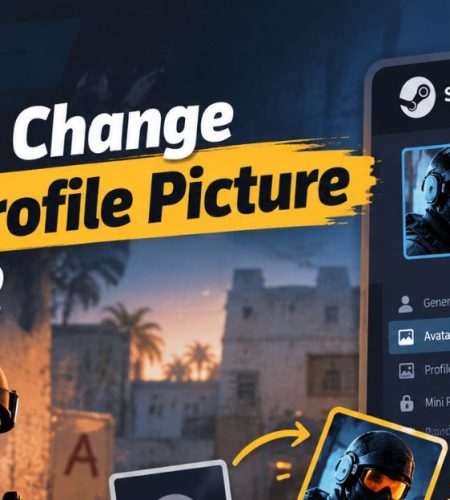
Your profile picture is one of the easiest ways to personalize your Counter-Strike 2 (CS2) account. It appears on your Steam profile and can also show up in CS2, including in places like the scoreboard.
The good news is that you don’t need to change anything inside the game itself. CS2 uses your Steam profile avatar, so you can update your picture through Steam in just a few steps.
How to Change Your CS2 Profile Picture
You can change your avatar through the Steam desktop app or a web browser. Here’s how to do it on a computer.
- Open Steam and sign in to your account.
- Click your username at the top of the Steam window.
- Select View my profile.
- Click Edit Profile on your profile page.
- Open the Avatar section.
- Upload your own picture or choose an available Steam avatar.
- Preview your new picture and save your changes.
That’s it. Your Steam profile will display the new avatar, and CS2 can use that same picture.
You can also open the Steam Community profile editor to get started.
How to Upload a Custom CS2 Avatar
If you don’t want to use one of Steam’s standard avatars, you can upload your own image.
First, choose a picture you want to use. It could be a gaming character, an anime image, a logo, or a photo you like. Then open your Steam profile, go to Edit Profile, and select Avatar.
Look for the option to upload your avatar, choose the image from your computer, and save it.
For the best result, keep these tips in mind:
- Use a square image: It makes cropping easier.
- Keep the main subject centered: Faces and logos can get cut off if they’re too close to the edges.
- Choose a clear picture: Small details may be hard to see when your avatar appears next to your name.
- Check the background: A simple background can help your avatar stand out.
Need some ideas for your new gaming picture? Browse PfpFinder’s Gaming PFPs for gaming-themed avatars, or check out Cool PFPs for more styles.
Can You Use an Animated Profile Picture in CS2?
Yes, but there is an important limitation. Steam supports animated avatars through its Points Shop, but you generally can’t upload any random GIF and use it as your Steam avatar.
To find animated options, open the Steam Points Shop and look through the available avatars. If you find one you like, follow Steam’s instructions to obtain and equip it. The available choices depend on what’s offered in the shop.
If you prefer a static image, you can upload your own picture through the Avatar section of your profile.
What If Your New Profile Picture Doesn’t Appear in CS2?
Sometimes your new avatar appears on your Steam profile before the change shows up in the game. Try these steps if you’re still seeing your old picture:
- Check your Steam profile to make sure the new avatar was saved.
- Close and reopen CS2.
- Give Steam a little time to update the picture across its services.
- Make sure you’re signed in to the correct Steam account.
If you still can’t edit your profile, Steam recommends checking that you’re logged in, not in Offline Mode, and connected to Friends & Chat. You can also consult Steam Support for profile issues.
How to Choose a Good CS2 Profile Picture
Your avatar is displayed at different sizes, so a picture that looks great when enlarged might not work as well in the game.
Here are a few styles worth trying:
- Gaming characters: Use a character or image connected to your favorite games.
- Anime avatars: Choose an expressive character with a clear silhouette.
- Minimalist icons: Simple designs are often easy to recognize at a small size.
- Dark or bold designs: Strong colors can help your picture stand out.
- Matching avatars: Use coordinated images with friends or your regular squad.
You can also browse PfpFinder’s anime PFPs or matching PFPs if you want something more specific.
Bonus: Customize Your CS2 Crosshair
Your profile picture isn’t the only part of CS2 you can personalize. You can also change your crosshair’s color, size, outline, and spacing to suit your preferences.
If you want to try different setups, check out this guide to custom CS2 crosshair codes. It can help you explore crosshair configurations and find one you want to test in-game.
Keep in mind that a crosshair that looks good in a screenshot may not be easy to see on every map. Test your settings in-game before settling on one.
Final Thoughts
Changing your CS2 profile picture is simple once you know where to look. Open your Steam profile, select Edit Profile, go to Avatar, and upload a picture or choose one of the available options.
Pick an image that’s clear, looks good at a small size, and fits your gaming style. If you want to change it again later, you can return to the same settings and choose another avatar.
Comments