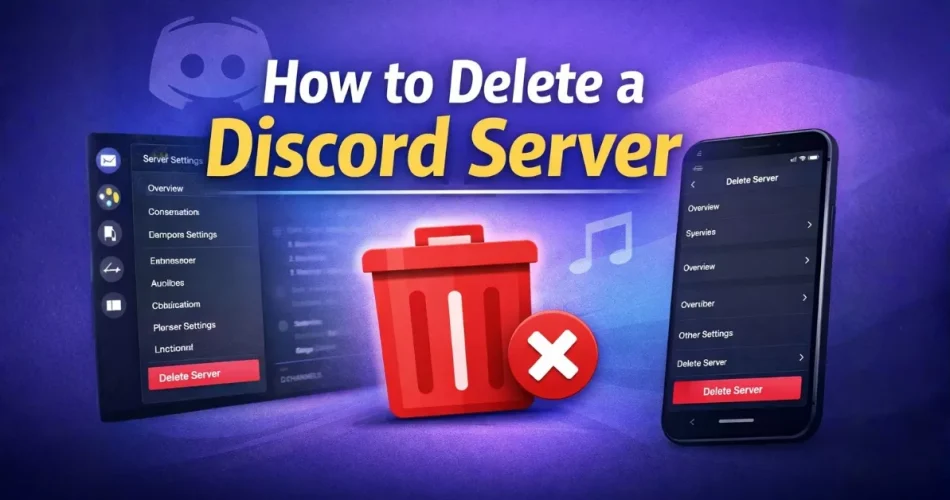
Deleting a Discord server permanently removes every channel, message, member, role, bot, and setting inside it. Once confirmed, the server cannot be restored.
Many users search for how to delete a Discord server after creating a test server, finishing a project, closing a community, or cleaning up unused servers. This guide explains the exact steps for desktop and mobile, common problems, ownership rules, and what happens after deletion.
How to Delete a Discord Server
To delete a Discord server:
- Open Discord
- Select the server you own
- Click the server name
- Go to Server Settings
- Scroll down and click Delete Server
- Type the server name or enter your 2FA code
- Confirm deletion
Only the server owner can delete a Discord server. Deletion is permanent.
Who Can Delete a Discord Server?
This is one of the most common questions.
Only the server owner can delete it.
- Admins cannot delete the server
- Moderators cannot delete the server
- Members cannot delete the server
If ownership was transferred to another person, only that new owner can remove the server.
What Happens When You Delete a Discord Server?
Once deletion is confirmed:
- All text channels are removed
- All voice channels disappear
- All messages are permanently erased
- All roles and permissions are deleted
- All bots are disconnected
- All invite links stop working
- All members lose access immediately
Discord does not provide recovery for deleted servers.
Before Deleting Your Discord Server
Many users delete a server quickly and later regret it. Review these steps before confirming.
1. Make Sure You Are the Owner
If you do not see the Delete Server option, you are not the owner.
To check ownership:
- Open Server Settings
- Go to Members
- Look for the crown icon next to your name
The crown indicates the owner.
2. Backup Important Information
Discord does not offer built-in server export tools. If your server contains:
- Important announcements
- Project discussions
- Uploaded files
- Shared media
Save that information manually before deletion.
3. Transfer Ownership Instead of Deleting
If your community is still active, deleting may not be the best solution.
To transfer ownership:
- Open Server Settings
- Click Members
- Select the member
- Click Transfer Ownership
- Confirm
After transferring ownership, you can leave the server without destroying it.
4. Confirm Two Factor Authentication Access
If 2FA is enabled on your account, Discord will request your authentication code during deletion.
Without access to your 2FA app, deletion cannot proceed.
How to Delete a Discord Server on Desktop
These steps apply to Windows, Mac, and the web version.
Step 1: Open Discord
Log into your account.
Step 2: Select the Server
Click the server from the left sidebar.
Step 3: Click the Server Name
At the top left of the screen, click the server name to open the dropdown menu.
Step 4: Open Server Settings
Select Server Settings.
Step 5: Scroll to the Bottom
In the left sidebar of settings, scroll down.
Step 6: Click Delete Server
The Delete Server option appears in red.
Step 7: Confirm Deletion
Type the server name exactly as shown.
If 2FA is enabled, enter your authentication code instead.
Click Delete Server to complete the process.
The server is now permanently removed.
How to Delete a Discord Server on Mobile (Android and iPhone)
The process on mobile is similar but placed differently in the interface.
Step 1: Open the Discord App
Log into your account.
Step 2: Select Your Server
Tap the server icon.
Step 3: Tap the Server Name
Tap the server name at the top of the screen.
Step 4: Open Settings
Tap the Settings option.
Step 5: Go to Overview
Inside the settings menu, tap Overview.
Step 6: Scroll Down
Scroll to the bottom of the screen.
Step 7: Tap Delete Server
Tap Delete Server.
Type the server name or enter your 2FA code to confirm.
The server will be permanently deleted.
Why Can’t I Delete My Discord Server?
If you cannot delete the server, check these common causes.
You Are Not the Owner
Only the owner can delete the server. Admin status is not enough.
Two Factor Authentication Is Blocking You
If 2FA is enabled and you do not enter the correct code, deletion will fail.
You Transferred Ownership
If you previously transferred ownership, you lost permission to delete.
You Are Logged Into the Wrong Account
Many users manage multiple accounts. Confirm you are logged into the account that created the server.
The App Needs Updating
Update Discord to the latest version and try again.
Delete Server vs Leave Server
These actions are different and often confused.
Leaving a Server
- The server remains active
- Other members stay
- You remove yourself only
Deleting a Server
- The entire server is erased
- All content is removed
- All members lose access
If your goal is simply to exit, choose Leave Server instead.
How to Delete a Discord Server You Are the Only Member In
If you are the only person in the server and you are the owner, follow the same deletion steps listed above.
Discord does not automatically remove empty servers. You must delete them manually.
Can You Delete Multiple Discord Servers at Once?
No.
Discord does not allow bulk deletion. Each server must be deleted individually.
How to Delete a Discord Channel Instead
If your goal is to clean up your server rather than remove it entirely, deleting channels might be enough.
To delete a channel:
- Right click the channel
- Select Edit Channel
- Scroll down
- Click Delete Channel
- Confirm
This removes only that channel.
Does Deleting a Discord Server Delete Your Account?
No.
Deleting a server does not affect your Discord account. Your account remains active and you can continue using Discord normally.
When Should You Delete a Discord Server?
Deleting makes sense when:
- The project has ended
- The server was created for testing
- The community is inactive
- You want to remove unused servers from your lis
If you no longer want to manage a structured community but still enjoy casual conversations, you might prefer simpler platforms that do not require servers, roles, or long term moderation. Some users switch to lightweight live chat services such as CallMeChat, where conversations and a live video chat start instantly without setting up a full server environment.
If your goal is simply a fresh start, consider redesigning your server instead. You can update your profile picture, refresh your banner, or explore new Discord PFP ideas before removing the entire server.
Final Thoughts
Deleting a Discord server is simple but permanent. Only the owner can complete the process, and once confirmed, all content is erased without recovery.
Always confirm ownership, check your 2FA access, and save important data before deleting.
If you are looking for more Discord pfps, guides, profile customization tips, or new profile picture ideas, explore our latest guide on Best Discord Profile Picture Sizes and curated list of 100+ Best Trio Matching Pfps & GIFs (Cute/Funny) to improve your setup instead of removing it completely.
Our Tools:
Comments