Discord banners allow users to customize their profile with a large background image that appears behind their avatar. Because the banner sits directly behind the profile picture, the two elements work together to create the overall look of a user’s profile. Much like the bright, instantly recognizable visuals seen in a casino hot fruits 40 interface, a well-designed Discord banner catches attention immediately and gives the profile a distinct style before anyone even reads the username or bio.
Many users want to save or view someone’s Discord banner to use as inspiration or to download the image in full quality. This guide explains how to get someone’s Discord banner, how to download it, why some users have banners while others do not, and tools you can use to view banners easily.
Quick Answer: How to Get Someone’s Discord Banner
To get someone’s Discord banner:
- Open Discord
- Go to the user’s profile
- Click their username
- View the banner behind the profile picture
- Use developer tools or a banner viewer to copy the image link
- Open the link in a browser and download it
This works only for users who have a custom Discord banner.
What Is a Discord Banner?
A Discord banner is the large background image that appears at the top of a user profile.
It appears:
- Behind the profile picture
- Behind the username and bio
- At the top of the profile card
Many users customize banners to match their avatar, theme, or community identity.
Most custom banners are available only to Discord Nitro users.
Who Can Use a Discord Banner?
Discord banners are available to:
Discord Nitro Users
Users with Nitro can upload a custom banner image to their profile.
Some Server Profiles
In certain servers, members can use a server specific banner.
Default Color Banners
Users without Nitro may have a default color banner based on their profile color.
Only profiles with image banners can be downloaded.
How to Get Someone’s Discord Banner Using Discord
The simplest method is viewing the banner directly from the profile.
Step 1: Open Discord
Launch the Discord app or web version.
Step 2: Find the User
Locate the user in:
- Direct messages
- Server member list
- Chat messages
Step 3: Open the Profile
Click the user’s name to open their profile card.
Step 4: View the Banner
The banner appears at the top of the profile window behind the avatar.
Discord displays the banner but does not provide a direct download option.
To save it in full resolution, you must use another method.
How to Download Someone’s Discord Banner
You can download the banner by extracting the image link.
Step 1: Enable Developer Mode
Open Discord settings.
- Click User Settings
- Go to Advanced
- Enable Developer Mode
Step 2: Copy User ID
Right click the user and select Copy User ID.
Step 3: Use a Discord Lookup Tool
Paste the ID into a Discord profile lookup tool.
The tool will display:
- Profile banner
- Avatar image
- User information
From there you can download the banner.
Many users use banner lookup tools because Discord itself does not provide a download button.
Use a Discord Banner Viewer Tool
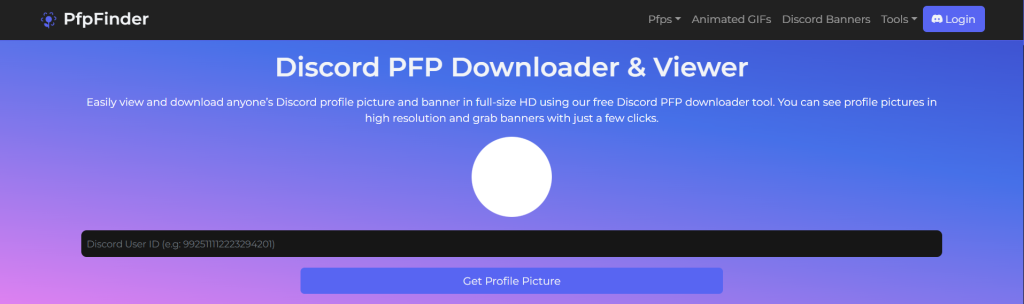
Another easy method is using a banner viewer tool.
These tools allow you to:
- View banners in full resolution
- Download banners instantly
- See profile images and avatars
If you want to explore profile visuals or download images, you can also browse large collections of profile pictures and banners on PfpFinder.
Many users discover banner inspiration while exploring PFP collections and avatar designs.
Why Some Discord Users Do Not Have Banners
Sometimes you open a profile and see no banner image.
Common reasons include:
The User Does Not Have Discord Nitro
Custom banners require Nitro.
The User Uses a Default Banner Color
Discord shows a solid color background instead of an image.
Privacy or Server Settings
Certain profiles display banners differently depending on the server.
Banner Not Set Yet
The user simply has not uploaded one.
Discord Banner Size and Image Requirements
If you plan to upload or recreate a banner, you should know the recommended size.
Recommended Discord banner size
- 600 x 240 pixels
File formats supported
- PNG
- JPG
- GIF (animated banners with Nitro)
Many users design banners that match their avatar or theme.
Matching banners and profile pictures create a clean Discord profile.
Check more detailed on Best Discord Profile Picture Sizes [2026]
How to Create a Discord Banner
If you want a banner similar to one you saw, you can design your own.
Step 1: Choose an Image
Use:
- Anime artwork
- Gaming themes
- Aesthetic backgrounds
- Minimal designs
Step 2: Resize the Image
Resize it to 600 x 240 pixels.
Step 3: Upload to Discord
- Open User Settings
- Go to Profiles
- Upload the banner image
Your banner will appear on your profile instantly.
Tips for Matching Your Banner and Profile Picture
Many Discord users create matching designs.
Popular combinations include:
- Anime avatar with anime banner
- Dark aesthetic PFP with dark banner
- Gaming avatar with gaming themed banner
- Minimal PFP with gradient banner
If you want inspiration, you can browse thousands of profile pictures, avatars, and banner ideas across different styles.
Many users update their PFP first, then design a banner that matches it.
Is It Allowed to Download Someone’s Discord Banner?
Downloading a banner for personal inspiration is common.
However:
- Do not claim someone else’s artwork as your own
- Respect artist credits
- Avoid reposting copyrighted images without permission
If you plan to use the banner publicly, make sure you have permission from the creator.
Frequently Asked Questions
Can you download someone’s Discord banner?
Yes. You can download someone’s Discord banner if the user has a custom banner set on their profile. The banner appears behind the avatar when you open the user’s profile. Discord does not provide a direct download button, so most users copy the image link using developer mode or use a Discord banner viewer tool to access the full resolution image and save it.
Do all Discord users have banners?
No. Custom Discord banners are mainly available to Discord Nitro users. Users without Nitro usually have a default color banner instead of an image. Some servers may also display server-specific profile banners, but custom image banners are primarily a Nitro feature.
What is the Discord banner size?
The recommended Discord banner size is 600 × 240 pixels. This size ensures the banner displays properly across desktop and mobile profiles. Discord supports common image formats such as PNG, JPG, and GIF. Animated banners require Discord Nitro.
Can you get animated Discord banners?
Yes. Discord Nitro users can upload animated banners using GIF images. Animated banners appear behind the user’s profile picture and move when someone opens the profile. Users without Nitro can only use static image banners or default color banners.
Can you see someone’s Discord banner without being friends?
Yes. You can see someone’s Discord banner as long as their profile is visible to you. If the user shares a server with you or appears in a chat conversation, you can open their profile and view the banner at the top of the profile card. Friendship is not required to view the banner in most cases.
Final Thoughts
Discord banners help users personalize their profile and create a recognizable online identity. Many users download banners for inspiration or design their own to match their avatar.
If you want to upgrade your profile appearance, consider pairing a banner with a high quality avatar or profile picture. Small visual changes can make a Discord profile stand out in communities and servers.
If you’re looking to spice up your server after the change, we have a ton of cool profile pictures and GIFs for Discord. Plus, we can help you figure out the perfect sizes for your server’s icon and banner with How to Change Your Discord Profile Picture!
Comments